American Sign Language University: Product Support
Product support for "Canvas" See: Videos not showing up in Canvas
Product Support for the disks:
Hello :)
Okay, lets start on the assumption that we can get your disk to work.
I'll walk you through the solutions here. If none of these solutions work, or if you don't want to mess with it and just get a refund, that is certainly okay too. If you want a refund, just email Belinda. Her address is BelindaGVicars(at)AOL.com.
I've been selling this disk (with occasional updates) for over 15 years now (started as VHS tapes) and will keep at it in one form or another for as long as my health allows. My goal is for you to be (very) satisfied and for me to have a bit of income to support the ASLU website (Lifeprint.com).
Belinda (my lovely, talented wife) checks each disk before she sends them out. If the disk doesn't work in your computer it is usually something that can be solved. There is a slight chance that the disk got damaged in transport but that is very rare.
Perhaps the easiest approach to troubleshooting the disk is to try the disk on two or three different computers. If it works on some other computer then that means there is a good chance that you can eventually get it to work on your preferred computer.
Also if it works on a different computer, I recommend you just copy the files from there to a USB drive and transfer them back to your target computer and play them from there. Note: if you are trying to access the files from your hard drive, you will probably have to adjust your computer's security settings to allow "active content." See below for more information.
As a matter of fact, I recommend even if the disk works on your computer that you go ahead and copy the files to your local hard drive and access them from there and put away the disk for safekeeping later on. If you have several computers in your house, I give you permission to put the files on all of them and your work computer too. If you can get the disk to work, but would like it to work faster-- copying the files to your hard drive will speed up your access since your hard drive is much faster than your disk drive.
Anyway, what normally happens is people put in the disk and their internet browser opens up and accesses the index.htm file on the root of the disk. The disk is basically one big website stored on plastic and so you use your browser to access it. If it doesn't open up automatically, try navigating to the root of the disk and double clicking on the "index" (or index.htm) file. Note: If your computer asks for permission to run "active content," -- that is a good thing -- give it permission. Your computer isn't used to running websites from the disk drive so it is asking you "What's up?"
Next, check your security settings. Sometimes people's security settings prevent the javascript in the disk from working on their system. Look for any dialog boxes at the top of your browser window that ask if you want to give this "page/program" permission and click "yes."
A student writes:
<<I have updated everything and still cannot play the disk. I am using all the latest software and all my systems are updated with the latest. I can open individual files from the individual file folders but not the web page display that should let me point and click the various pages in the site.>>
Response:
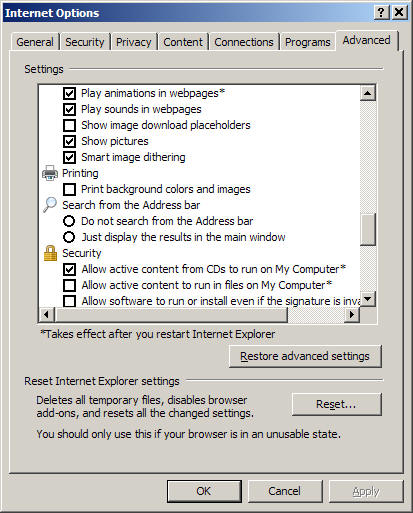
The fact that the disk opens at all indicates to me that it might be a security / permissions issue that is preventing "active content" from being accessed from the disk.Try this: In Internet Explorer, click on Tools, then on Internet Options, then on the Advanced tab. Scroll down to the Security settings and enable the option to "Allow active content from disks to run on My Computer". If your operating system or web browser is different, just do an internet search for instructions on how to run active content from a disk.
More Advice:
Sometimes there is an issue with "codecs."
Your media player uses "compression / decompression" software to handle video files. It can often "go get" the correct file from the internet on its own, (it can update its "codec" for .wmv files). This is a very normal thing and can be done automatically for you via the internet.
Open up Media Player (Microsoft) and can click on "Tools" and then choose "OPTIONS" then choose the PLAYER tab. One the "player" window look to see the "Download codecs automatically" check box and make sure it is checked.
Then connect to the internet.
Then try to play the disk. If you have an older codec, Media Player goes to the internet to download an updated codec so your computer will be able to play the latest files.
A student writes:
"Yeah! I finally got it. I had to change it to "read all files." Thanks!"
In a message dated 11/18/2016 11:50:50 A.M. Pacific Standard Time, Emily writes:
Hi Bill!
I ordered your Superdisc last year and absolutely love it! I have been watching the videos and improving! I took a break for a while and just recently tried to use the superdisc again, however, it is not working. None of the videos will load (in the lessons or the quizzes). I mainly use Chrome as my browser. My adobe is up-to-date. I downloaded everything off the disc onto my desktop like your support page suggested, but I am having the same issue when I open it from that folder.
Do you have any suggestions of what I should try?
Thanks!
Emily--------------------------
Emily,
Hello :)
If you have installed an external Flash player it might be conflicting with the built in player used by Chrome. To check, type about://plugins into the address bar at the top of a Chrome browser window. Then on the Plug-ins page, disable one of the Flash Players. If you don't have any external Flash players, the problem might be a disabled built-in Flash player in Chrome. To re-enable it type about:plugins into the address bar and click Details at the upper-right corner of the page. Find the Flash (or Shockwave Flash) listing on the Plug-ins page and click the corresponding Enable button. Close all Chrome windows and restart the browser. (Even better, restart your computer.)
Let me know if that solves the problem.
If not, we will figure out some other solution.
- Bill
Support for Apple / Macs:
I believe if you download Adobe's "Flash" player it will probably solve any video issues.
See: https://get.adobe.com/flashplayer/otherversions/
Also see item number 4 at: http://helpx.adobe.com/flash-player.html
That should "do it" but if you still have problems, see:
http://helpx.adobe.com/flash-player/kb/installation-problems-flash-player-mac.html
Cordially,Dr. Bill
Other possible issue:
Sometimes it could be that it is your computer's security settings are preventing the disk contents from showing up. Some of the pages have Javascript in them and that flags some Window's operating systems. Look for any "warning" boxes that show up at the top of your browser window and click "allow." I think the important thing is to find out if it is the disk, or if it is the computer that is not letting the lessons show up.
In a message dated 3/29/2007 10:51:22 A.M. Pacific Daylight Time, Dana writes:Bill,I recently ordered and received the disk. I was expecting to be able to use it like asl.ms to read fingerspelling at different speeds, but I can't seem to make it work. I ordered the disk because my office computer is blocked from visiting the asl.ms website anymore because of the video streaming and my home computer is way to slow. Are there any instructions for using the disk, which files to access for what, etc.?Thanks,DanaHi Dana,
Thanks for contacting me.
Let's try a couple things, okay? There is a strong chance that it is your security settings that is causing the problem. "Windows" operating systems don't like to let "active content" run from CDs so you have to give them permission.
In Internet Explorer, on the Tools menu, click Internet Options. On the Advanced tab, scroll down to the Security section of the list. Select the "Allow active content from CDs to run on My Computer" check box, and then click OK. See below:
Now, if that doesn't work, or even if it does, I suggest you right click on the disk icon listed in "My Computer" and choose "explore." Then copy the contents of the disk to a folder on your hard drive. Then open that folder and click on "index" or "index.htm" and see if you can get it to run from your hard drive without using the disk.
In either case, let me know how it goes.
--Cordially,
Dr. Bill
More advice:If you are using a Microsoft Window's based computer and if you haven't already done so, please use Microsoft's free and (relatively) easy update process. You should do this for no other reason than just to make your computer run better and be safer from hackers. You can update your operating system (Windows versions) by going to this address: http://update.microsoft.com and use the update function to make sure you have all the latest service packs and patches including the most recent version of Internet Explorer.
Next, make sure you have a good "media player." Download the latest version of Microsoft's "Windows Media Player." Don't worry, the process is relatively simple. Just go to: http://microsoft.com/windows/mediaplayer
Note: even if you weren't having problems with your disks it is generally a good idea to do the above "updating" if for no other reason than to help avoid viruses, worms, and trojans.
Macintosh (Apple) compatibility:
Some macs can run the disks directly, some can't. In your circumstance I recommend we try opening the disks on a PC compatible computer and then copying them to a USB thumb drive. The disks are a few hundred MB each, so depending on the capacity of your thumb drive you might have to make a few trips between computers. Or if you have a high capacity thumb drive you can just use the disks from the thumb drive wherever you go on whatever computer you happen to be at.
Using the thumb drive, copy the disks to individual folders your Mac and then open the "index" file at the root of each disk folder to "start" the disk interface. At that point they should behave like web pages. If after you copy the disks to your local computer and you open the files and click on the "video" (quiz) link suppose the video doesn't play--it is likely due to your computer wanting to know what program to use to play the videos. You might need to associate the .wmv (video) files with "MediaPlayer" from Microsoft. It might be easy, or you might need to go to http://www.microsoft.com/windows/windowsmedia/download/ and get the version of -MediaPlayer that fits your operating system.
Want to help support
ASL University? It's easy:
DONATE (Thanks!)
(You don't need a PayPal account. Just look for the credit card
logos and click continue.)
Another way to help is to buy something from the ASLU "Bookstore."
Want even more ASL resources? Visit the "ASL Training Center!" (Subscription
Extension of ASLU)
CHECK IT OUT >
Bandwidth slow? Check out "ASLUniversity.com" (a
free mirror of
Lifeprint.com less traffic, fast access)
VISIT >
You can learn
American Sign Language (ASL) online at
American Sign Language University ™
Lifeprint.com © Dr. William Vicars
